How to Use Track Markers
m (→Set its Effect Radius (S20)) |
m (→Move the Track Mark Along the Track (S20)) |
||
| Line 876: | Line 876: | ||
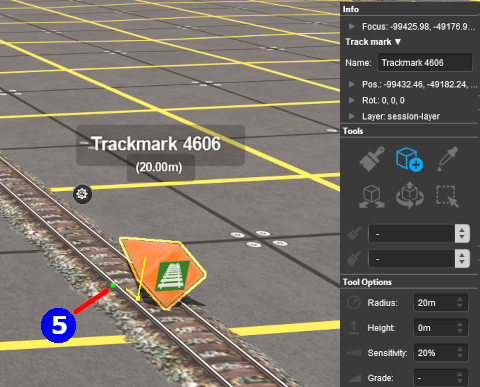
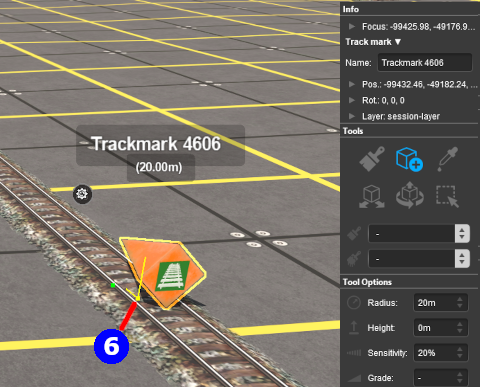
The yellow dot beneath the '''Track Mark''', labelled as [[image:DotPoint6Blue.png|20px|link=]] in the image, is the '''Attachment Point''' for the Track Mark. This is where it is attached to the track and is its '''Active Point''', the target of '''Drive To Trackmark''' and '''Navigate to Trackmark''' commands. | The yellow dot beneath the '''Track Mark''', labelled as [[image:DotPoint6Blue.png|20px|link=]] in the image, is the '''Attachment Point''' for the Track Mark. This is where it is attached to the track and is its '''Active Point''', the target of '''Drive To Trackmark''' and '''Navigate to Trackmark''' commands. | ||
<br><br> | <br><br> | ||
| − | The attachment point is always on the track but the '''Track Mark''' object itself, the visible 3D arrow head, does not have to be physically on the track. | + | The attachment point is always on the track but the '''Track Mark''' object itself, the visible 3D arrow head, does not have to be physically on the track.<br> |
| + | <br> | ||
| + | <table bgcolor=#000000 cellpadding=2> | ||
| + | <tr valign="top"> | ||
| + | <td> | ||
| + | <table bgcolor=#ffffb0 cellpadding=2> | ||
| + | <tr valign="top"> | ||
| + | <td width=25>[[image:NotePad.PNG|link=]]</td> | ||
| + | <td width=975><span style="font-size: 17px; font-weight: 700;">Notes:'''</span><br> | ||
| + | ---- | ||
| + | If you drag the object itself and not its attachment point then it will stay at its original height as it is moved along the track. If the track is on a grade then the object will rise above or fall below the track as it is moved.<br> | ||
| + | <br> | ||
| + | Dragging it by the attachment point will force it to stay at the height of the track as it is moved.</td> | ||
| + | </tr> | ||
| + | </table> | ||
| + | </td> | ||
| + | </tr> | ||
| + | </table> | ||
</td> | </td> | ||
</tr> | </tr> | ||
</table> | </table> | ||
<br> | <br> | ||
| + | |||
===Move the Track Mark Vertically (S20)=== | ===Move the Track Mark Vertically (S20)=== | ||
Latest revision as of 06:39, 31 January 2026
The information in this Wiki Page applies to TANE, TRS19, Trainz Plus and TRS22.
 |
 |
|
|
[edit] What are Track Marks? |
 |
|
|
 |
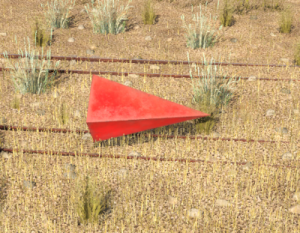
The Trainz AI relies heavily on Track Marks to direct trains around a layout. They are only visible in Surveyor |
|
 |
||||||||||||

[edit] Route or Session? |
|
 |
|
|
|
Track Marks can be placed in a Route Layer or in a Session Layer |
|

 |
Information on Route and Session layers can be found at:- |
[edit] Adding a Track Mark |
 |
|
|
|
|
|

[edit] In Surveyor Classic (S10) |
|
 |
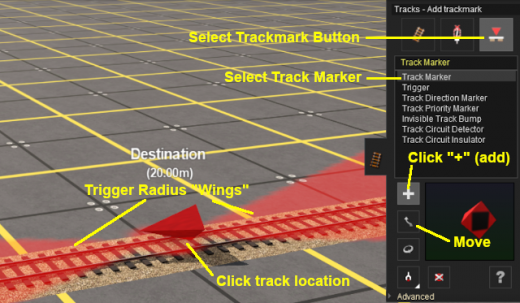
[edit] Adding a Track Mark (S10)
 |
|
||||||||||||||||||


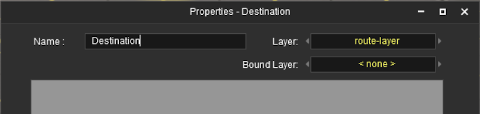
Immediately after the Track Mark has been placed its properties window will appear. You can:-
|
 |
|
[edit] Set the Track Mark Effect Radius (S10)
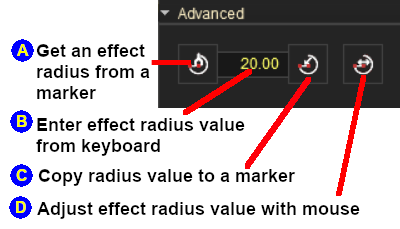
At the bottom of the Track Tools flyout menu is an Advanced button. Left Click this button to open the advanced tools.
| The Effect Radius is the size of red "effect wings" attached to both ends of the marker. This sets how close a consist has to approach the marker to complete certain driver commands such as "Drive To Trackmark". The smaller the radius the closer it must approach. |
|
|
||||||||||||||||||||||||||||||||||||||||||

 below
below
 ) to another Track Mark
|
[edit] In Surveyor 2.0 (S20) |
|
|
|
[edit] Adding a Track Mark (S20)
 In the Filter Palette either:-
|
|
||||||||||||||||||||||||||||||||||||
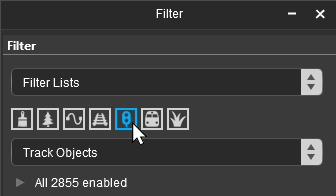
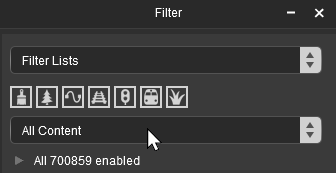
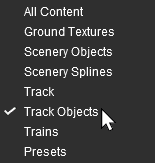


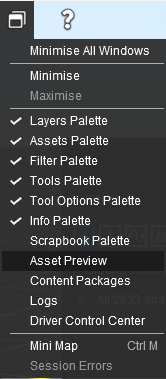
 Window Menu from the menu icons at the top of the screen

 In the Assets Palette to narrow down the filter list, type "mark" (UPPER/lower case does not matter) in the Search Text Box
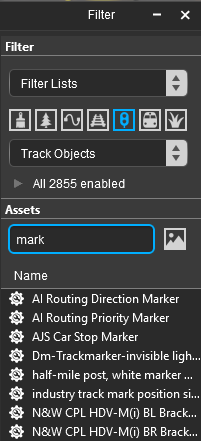 Both pallets shown docked |
|
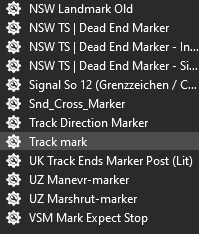
 Place the Track Mark on the track.
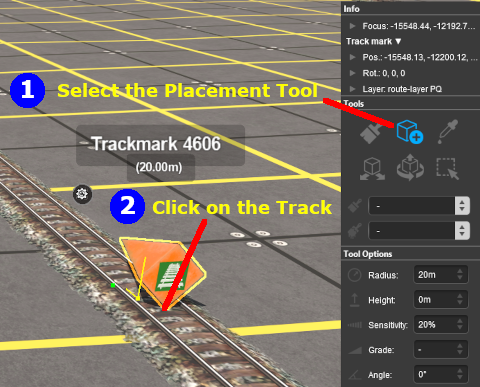 |
|
|||||||||||||||||||||||
|
|
||||||||||||||
[edit] Change the Track Mark Name (S20)
The Track Mark name is used to identify it for Drive and other commands.
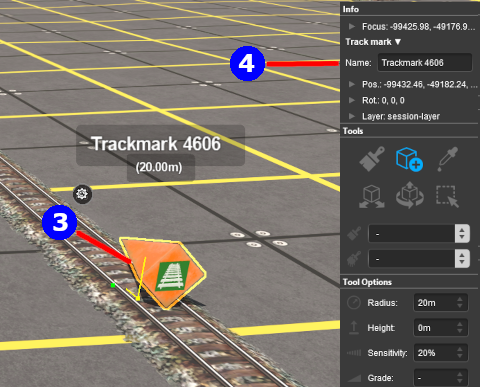 |
|
|||||||


[edit] Set its Effect Radius (S20)
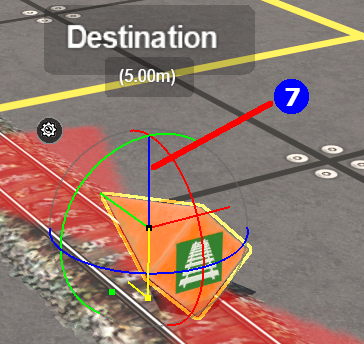
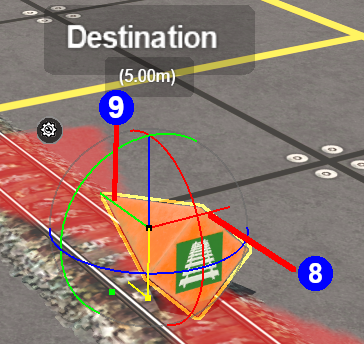
| The Effect Radius is the size of red "effect wings" attached to both ends of the marker. This sets how close a consist has to approach the marker to complete certain driver commands such as "Drive To Trackmark". The smaller the radius the closer it must approach. |
 |
|
||||||||||||||

Once you have set the Name and Effect Radius of a track mark it can be quickly duplicated (cloned) in Surveyor 2.0 with those settings and moved to a new location. You can easily edit the name and properties of the clone at the new location. See  How to Use S20 Tools - Cloning Objects for the details How to Use S20 Tools - Cloning Objects for the details |
[edit] Move the Track Mark Along the Track (S20)
Track Marks can be moved along the track or to other tracks.
 |
|
||||||||

[edit] Move the Track Mark Vertically (S20)
| Track Marks can be physically placed above (or below) the track. This feature allows them to be placed, for example, above the track so that they will not be hidden in Surveyor if a consist is parked on a marker. |
 |
|
|||||||||||||||||||

[edit] Move the Track Mark Horizontally (S20)
| Track Marks can be physically placed left or right alongside the track. This feature allows them to be placed, for example, beside the track so that they will not be hidden in Surveyor if a consist is parked on a marker. |
 |
|
|||||||||||||||||||||


|
[edit] Assign a Track Mark to Another Layer (S20)
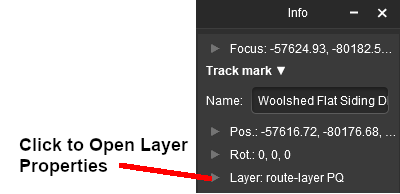
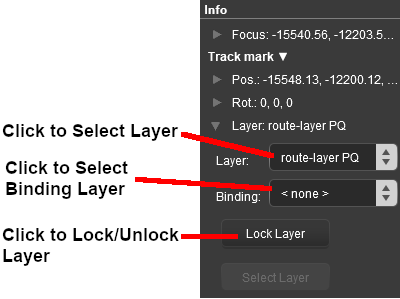
| The Info Palette will show the layer assigned to the currently selected object. To the left of the layer name is a small arrowhead object. | |||||||||||||||||||||||
  |
|
||||||||||||||||||||||

[edit] Track Mark Operation |
|
|
|
|
The most common use for Track Marks is as destinations for driver commands or as "way points" to direct a train to a destination via one or more intermediate places. They can also be used as the targets for Navigation Points and coupling operations.
[edit]
|
Information on adding driver commands can be found at:- |
|
 |
Drive To Trackmark Instructs the AI driver to Drive, via the shortest available path, to the designated Track Mark. The AI will noticeably slow the train as it approaches the Track Mark. Switches ahead of the train that are not locked against the AI will be set to allow the train to proceed and reset after the train has cleared the switch. The AI driver will NOT attempt to find a way around blockages when calculating the shortest path to the Track Mark. All signals and speed signs along the route are obeyed. |
 |
Drive Via Trackmark Instructs the AI driver to Drive, via the shortest available path, to and through the designated Track Mark. If there are no further navigation commands (e.g. Drive To, etc) then the AI will halt the train after passing the Track Mark. If there are further navigation commands then the AI will proceed through the Track Mark to the next Track Mark or Industry at normal speed. Switches ahead of the train that are not locked against the AI will be set to allow the train to proceed and reset after the train has cleared the switch. The AI driver will NOT attempt to find a way around blockages when calculating the shortest path to the Track Mark. All signals and speed signs along the route are obeyed. |
|
Navigate To Trackmark Instructs the AI driver to Drive, via the shortest available path, to the designated Track Mark. The AI will noticeably slow the train as it approaches the Track Mark. Switches ahead of the train that are not locked against the AI will be set to allow the train to proceed and reset after the train has cleared the switch. The AI driver will attempt to find a way around blockages when calculating the shortest path to the Track Mark. All signals and speed signs along the route are obeyed. |
|
Navigate Via Trackmark Instructs the AI driver to Drive, via the shortest available path, to and through the designated Track Mark. If there are no further navigation commands (e.g. Navigate To, etc) then the AI will halt the train after passing the Track Mark. If there are further navigation commands then the AI will proceed through the Track Mark to the next Track Mark or Industry at normal speed. Switches ahead of the train that are not locked against the AI will be set to allow the train to proceed and reset after the train has cleared the switch. The AI driver will attempt to find a way around blockages when calculating the shortest path to the Track Mark. All signals and speed signs along the route are obeyed. |
[edit]
Navigation Points can be attached to Track Marks to provide users with session instructions.
|
Information on navigation points can be found at:- |
[edit] Coupling Operations
An AI controlled train can be issued with a driver command to couple with the consist located at a specified Track Mark.
 |
The AI driver moves the train (or just the locomotive if it is by itself) to couple with the wagon that is closest to a specified trackmark. More information on this command can be found at  Couple At Trackmark Couple At TrackmarkThis command must be downloaded from the DLS and installed in Trainz |
|
Information on adding driver commands can be found at:- |
|
|
[edit] Trainz Wiki
|
|

This page was created by Trainz user pware in September 2019 and was last updated as shown below.
