|
|
| Line 147: |
Line 147: |
| | <tr valign="top"> | | <tr valign="top"> |
| | <td> | | <td> |
| − | # If you have already closed the opening message window then the first step is to pause the session by pressing the <span style="font-weight: 700; font-size: 15px; color: white; background-color: black;"> P </span> key. | + | # Open the session '''SAR Northern Division Free Roam Session V2''' into '''Trainz Driver'''. To do this:<br> |
| | + | #* From the '''Driver/Surveyor''' loading screen select the route '''SAR Northern Division (Narrow Gauge) Route v2''' |
| | + | #* Then select <span style="font-weight: 700; color: white; background-color: grey;"> VIEW SESSIONS </span> |
| | + | #* Then select the session '''SAR Northern Division Free Roam Session V2''' |
| | + | #* Click <span style="font-weight: 700; color: white; background-color: grey;"> DRIVE SESSION </span> |
| | + | # If you have already closed the opening message window then pause the session by pressing the <span style="font-weight: 700; font-size: 15px; color: white; background-color: black;"> P </span> key. |
| | # If you decide to set the session clock to a different starting time (for example: to match the train timetable shown below) then follow the instructions shown in the '''Orders''' section | | # If you decide to set the session clock to a different starting time (for example: to match the train timetable shown below) then follow the instructions shown in the '''Orders''' section |
| | # Next locate your loco. '''Either''':- | | # Next locate your loco. '''Either''':- |
| Line 163: |
Line 168: |
| | # When you are ready to start, reload the '''Peterborough Base Session''' page (click the '''Scenarios''' button on your current location page) and select this '''Scenario''' again or just use the '''Back''' button on your browser - whichever is quicker. | | # When you are ready to start, reload the '''Peterborough Base Session''' page (click the '''Scenarios''' button on your current location page) and select this '''Scenario''' again or just use the '''Back''' button on your browser - whichever is quicker. |
| | # Switch back to '''Trainz Driver Mode''' | | # Switch back to '''Trainz Driver Mode''' |
| − | # Close the opening message window and, if '''Pause''' is shown on the screen, press the <span style="font-weight: 700; font-size: 15px; color: white; background-color: black;"> P </span> key to start the session. | + | # Close the opening message window if it is on the screen '''OR''' if '''Pause''' is shown on the screen instead, press the <span style="font-weight: 700; font-size: 15px; color: white; background-color: black;"> P </span> key. Both actions will start the session. |
| | </td> | | </td> |
| | </tr> | | </tr> |
Latest revision as of 17:26, 8 January 2026
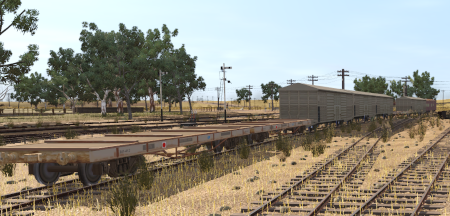
| Local stopping freight services between Gladstone and Peterborough |
 |
|
When, Where and With What
 |
| Era: |
1920s to 1960s |
| Duration: |
2 hrs each way |
| Locos: |
At Gladstone:-
|
| |
At Peterborough for the return trip:-
|
| Consist: |
At the Gladstone Grain Silos Siding
|
|
|
|
Similar/Related Scenarios
|

|
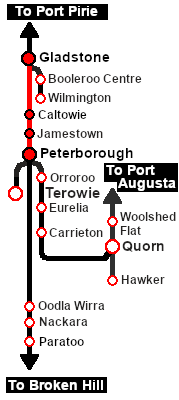
Each location in the layout has a detailed set of track diagrams that provide a variety of useful information
The Getting Started guide below gives a summary of what is available.
To display this information click any  graphic, or go to the bottom of the page for all the session links (all links will open in this window). graphic, or go to the bottom of the page for all the session links (all links will open in this window). |
Getting Started:
- Open the session SAR Northern Division Free Roam Session V2 into Trainz Driver. To do this:
- From the Driver/Surveyor loading screen select the route SAR Northern Division (Narrow Gauge) Route v2
- Then select VIEW SESSIONS
- Then select the session SAR Northern Division Free Roam Session V2
- Click DRIVE SESSION
- If you have already closed the opening message window then pause the session by pressing the P key.
- If you decide to set the session clock to a different starting time (for example: to match the train timetable shown below) then follow the instructions shown in the Orders section
- Next locate your loco. Either:-
- Open the Finder Tool (press Ctrl F ) and type, in the Name field, the name of the loco, for example SAR T 200 (or just T 200 should be enough). Click the tick icon, OR
- Open the Driver List (bottom left of the screen) and then scroll through the list to find either:-
- the loco name (e.g. SAR T 200) OR
- the driver icon (e.g. named Driver 200) - this is a non-animated icon
- then click the drivers Eye icon
 to take control of the loco to take control of the loco
- Take a few moments to get your bearings. Click
 (this link will open in this window) to show the location details and track plans for Gladstone. In each location details page:- (this link will open in this window) to show the location details and track plans for Gladstone. In each location details page:-
- the
 tab gives an overall summary of each location with a "potted" history (where available). tab gives an overall summary of each location with a "potted" history (where available).
- the
 tab reveals the invisible tab reveals the invisible  Track Marks for Drive To commands. Track Marks for Drive To commands.
- the
 tab lists all active industries and their commodities. tab lists all active industries and their commodities.
- the
 tab describes the names, locations and settings of all junction switches as well as some switch sets you may want to use. tab describes the names, locations and settings of all junction switches as well as some switch sets you may want to use.
- Each location details page has direct links to the adjacent locations so you can explore along the route.
- When you are ready to start, reload the Peterborough Base Session page (click the Scenarios button on your current location page) and select this Scenario again or just use the Back button on your browser - whichever is quicker.
- Switch back to Trainz Driver Mode
- Close the opening message window if it is on the screen OR if Pause is shown on the screen instead, press the P key. Both actions will start the session.
|
|
Tutorial:
 |
A tutorial on using these scenarios is provided in the link on the left. The link will open in this window |
|
Orders:
- Select a suitable loco and attach it to the local consist stored on the Grain Silos Siding
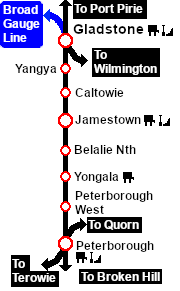
- Proceed to Caltowie, Jamestown, Belalie North (Wednesdays only), Yongala and Peterborough according to the working timetable below detaching QLX wagons at the Goods Sheds and MTW flat wagons at the Goods Cranes
- At Jamestown Loco Coal & Water Stage water and coal the loco if required
- At Peterborough coal and water the loco and stable in the Loco Depot Shed yard
- For the return trip select a suitable loco (see list above) and collect the detached wagons at each location. Stable the wagons on an available siding or yard road at Gladstone. Return the loco to the Depot
|
 |
| Gladstone-Peterborough Local Freight Timetable |
| |
Days
Train № |
|
|
M F
228 |
|
|
W
229 |
|
|
|
Days
Train № |
|
|
W
129 |
|
|
M F
130 |
|
| Gladstone Depot |
CEFJØWX |
dep |
06:30 |
06:30 |
Peterborough Loco Depot |
dep |
16:00 |
16:20 |
| Goods Shed |
|
A |
A |
Goods Shed |
|
A |
A |
| Yard |
dep |
06:50 |
06:50 |
Yard |
dep |
16:25 |
16:42 |
|
| Caltowie |
FX |
arr |
07:12D |
07:12D |
Yongala |
arr |
16:38A |
16:55A |
| |
dep |
07:27 |
07:27 |
dep |
16:55 |
17:10 |
| Jamestown |
CFØWX |
arr |
07:351 |
07:351 |
Belalie North |
arr |
17:06A |
.. |
| Yard |
|
D |
D |
dep |
17:21 |
17:21 |
| Depot |
|
cw |
cw |
Jamestown |
dep |
17:332 |
17:332 |
| Yard |
dep |
08:02 |
08:02 |
Yard |
|
A |
A |
| Belalie North |
FX |
arr |
.. |
08:14D |
Depot |
|
cw |
cw |
| dep |
08:14 |
08:29 |
Yard |
dep |
18:20 |
18:20 |
| Yongala |
FX |
arr |
08:25D |
08:40D |
Caltowie |
arr |
18:33A |
18:33A |
| dep |
08:40 |
08:55 |
|
dep |
18:48 |
18:48 |
|
| Peterborough |
CEFJØWX |
arr |
08:53 |
09:08 |
Gladstone Yard |
arr |
17:07 |
17:07 |
| Goods Shed |
|
D |
D |
Goods Shed |
|
D |
D |
| Main Loco Depot |
|
cwS |
cwS |
Loco Depot |
|
cwS |
cwS |
|
|
|
| bold time = arrive/depart time |
plain time = timing point |
| Service Symbols: |
| A Attach wagons |
D Detach wagons |
L Load |
S Stable loco |
T Turn loco |
| U Unload |
a on request stop |
c coal (if required) |
w water (if required) |
|
| 1 Cross train 111 |
2 Cross train 206 |
|
|
| Location Symbols: |
| Δ = Turning Triangle |
C = Loco Coal Loader |
E = Engine Depot |
F = Fixed Signals |
| J = Junction |
Ø = Loco Turntable |
W = Loco Water Tank |
X = Crossing Loop |
|
|
|
This page was created by Trainz user pware in June 2024 and was last updated as shown below.