How to Manage Backups
(Created page with "The information in this Wiki Page applies to '''TANE''', '''TRS19''' and '''Trainz Plus'''. This guide will explain automatic and manual backups in Trainz.<br> <table cellpad...") |
(added section on a backup plan) |
||
| Line 93: | Line 93: | ||
<table> | <table> | ||
<tr valign="middle"> | <tr valign="middle"> | ||
| + | <td>[[file:DotPoint.JPG|link=]]</td> | ||
<td>[[file:LauncherSettingsDailyBackups7.png|link=|alt=Launcher Settings Tabs]]</td> | <td>[[file:LauncherSettingsDailyBackups7.png|link=|alt=Launcher Settings Tabs]]</td> | ||
<td>If you are working on developing a new route or session then '''7''' daily backups could be a suitable number.</td> | <td>If you are working on developing a new route or session then '''7''' daily backups could be a suitable number.</td> | ||
</tr> | </tr> | ||
<tr valign="middle"> | <tr valign="middle"> | ||
| + | <td>[[file:DotPoint.JPG|link=]]</td> | ||
<td>[[file:LauncherSettingsDailyBackups3.png|link=|alt=Launcher Settings Tabs]]</td> | <td>[[file:LauncherSettingsDailyBackups3.png|link=|alt=Launcher Settings Tabs]]</td> | ||
<td>If you are making minor changes to existing routes or sessions then '''3''' or '''4''' daily backups could be a suitable number.</td> | <td>If you are making minor changes to existing routes or sessions then '''3''' or '''4''' daily backups could be a suitable number.</td> | ||
</tr> | </tr> | ||
<tr valign="middle"> | <tr valign="middle"> | ||
| + | <td>[[file:DotPoint.JPG|link=]]</td> | ||
<td>[[file:LauncherSettingsDailyBackups0.png|link=|alt=Launcher Settings Tabs]]</td> | <td>[[file:LauncherSettingsDailyBackups0.png|link=|alt=Launcher Settings Tabs]]</td> | ||
| − | <td>If you are not working on any routes or sessions then '''0''' daily backups could be a suitable number.</td> | + | <td>If you are not working on any routes or sessions then '''0''' daily backups could be a suitable number - but '''remember to reset this when you do need the automatic backups again'''.</td> |
</tr> | </tr> | ||
</table> | </table> | ||
| Line 298: | Line 301: | ||
<td colspan="2"> | <td colspan="2"> | ||
----</td> | ----</td> | ||
| + | </tr> | ||
| + | </table> | ||
| + | |||
| + | =='''Backup Plan Basics'''== | ||
| + | |||
| + | <table cellpadding="4" bgcolor=#c1e7e7> | ||
| + | <tr valign="top"> | ||
| + | <td>[[file:DotPoint.JPG|link=]]</td> | ||
| + | <td>'''If you are using a manual backup method then devise a simple backup plan and stick to it'''</td> | ||
| + | </tr> | ||
| + | </table> | ||
| + | |||
| + | The most important parts of any backup plan are:- | ||
| + | *'''make regular backups''' - how often will depend on the complexity of the project | ||
| + | *'''keep duplicate sets of backups''' including on offline storage | ||
| + | *'''keep previous backup sets''', not just the latest ones - how many past sets you will want to keep will depend on factors such as available storage | ||
| + | *'''have a simple but consistent file naming system''' to be able to quickly identify the backup you need to restore lost work | ||
| + | <br> | ||
| + | <table cellpadding="4" bgcolor=#ffffb0> | ||
| + | <tr valign="top"> | ||
| + | <td>[[file:NotePad.PNG|link=]]</td> | ||
| + | <td><span style="font-size: 17px; font-weight: 700;">Sample Backup Plan:'''</span><br> | ||
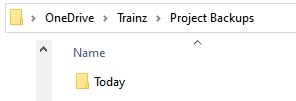
| + | *on a drive that is always attached to your system create a '''Project Backups Folder''' | ||
| + | *in this folder create another folder named '''Today''' | ||
| + | [[file:BackupsOnlineFolder.png|link=|alt=Online Project Backups folder]] | ||
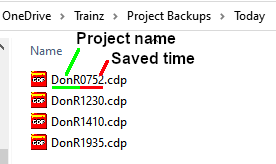
| + | *use this folder to store your regular backups for today. For example, when you take a break and exit from '''Surveyor''', start '''Content Manager''' and backup the current project (e.g. a route, a session or both) to the '''Today''' folder | ||
| + | [[file:BackupsOnlineFolderToday.png|link=|alt=Todays Backups folder]] | ||
| + | *name each backup using the name of the project and the time as shown in the example above | ||
| + | *at the end of each day copy the '''Today''' folder to an external drive such as a USB or a detachable SSD into a folder also called '''Project Backups''' | ||
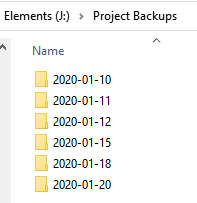
| + | *rename the '''Today''' folder on the external drive to a format that identifies the date of the backups it contains (using the '''yyyy-mm-dd''' format) as shown below | ||
| + | [[file:BackupsOfflineFolder.png|link=|alt=Offline Project Backups folder]] | ||
| + | *copy this renamed folder to a second external detachable drive (if you have one) in its '''Project Backups''' folder | ||
| + | *when starting work the next day, delete the contents of the '''Today''' folder on your main drive to start the process again | ||
| + | </td> | ||
</tr> | </tr> | ||
</table> | </table> | ||
Revision as of 23:11, 20 January 2020
The information in this Wiki Page applies to TANE, TRS19 and Trainz Plus. This guide will explain automatic and manual backups in Trainz.
| Main Points: | |
 |
Trainz will automatically backup your current route and session while you work. You can set the number of backups created each day |
|
You can use Content Manager to manually create backups of routes, sessions and assets as often as you need |
|
Both the manual and automatic backups can be restored to Trainz by Content Manager |
Contents |
Automatic Backups vs Manual Backups
 Notes: Notes: |
|||||||||
|
Automatic Backups
Creating Automatic Backups
| In Summary: | |
|
Only a set number of backups are created each day |
|
Only 7 days of backups are kept |
This is a Set and Forget operation. You simply tell Trainz how many backups you want created each day and the program takes care of the rest.
|
|
||||||||||
 |
Steps:
|
|||||||||
|
|
||||||||||




| Notes: |
||||
|
Only the last 7 days of backups are kept and this number cannot be changed.
Restoring Automatic Backups
The automatic backups are stored in a backup folder in your Trainz local data folder. The location of this folder is held in your Launcher - Trainz Settings - Install tab.
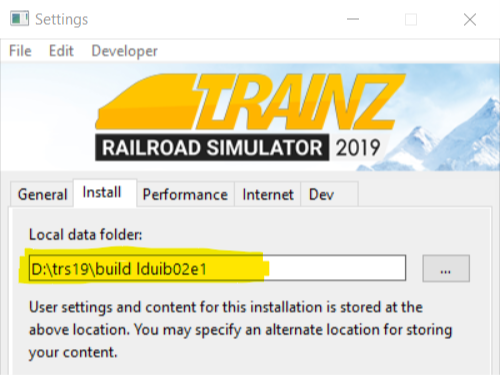
|
|
|
|
Step 1: Open the Backups Folder
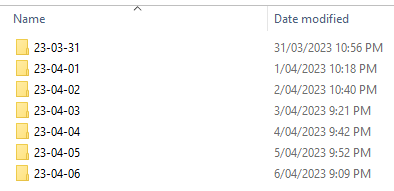 |
|
|
|
|
Step 2: Identify the Backup Folder
|
|
|
|
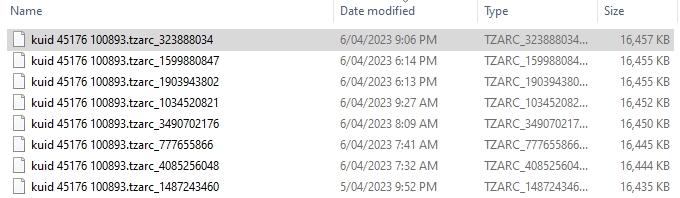
|
Step 3: Restore the Backup To Trainz
|
|
|
|
More details, including tips on troubleshooting, can be found in the Trainz Knowledge Base at Restoring Backups
Manual Backups
| In Summary: | |
|
You control the number and frequency of backups |
|
You control the backup location and filenames |
|
Assets, not just routes and sessions can be backed up |
Creating Manual Backups
|
Manual backups are stored as .CDP files |
|
Many assets can be stored in a single .CDP file |
|
|
||||||||||||||||
|
Steps:
|
|||||||||||||||

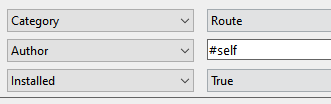
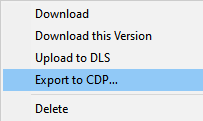
Restoring Manual Backups
|
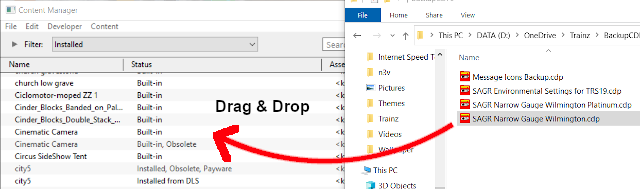
Simply drag and drop the backup CDP file or files into Content Manager |
|
|
|
|
Steps:
|
|
|
|
Backup Plan Basics
|
If you are using a manual backup method then devise a simple backup plan and stick to it |
The most important parts of any backup plan are:-
- make regular backups - how often will depend on the complexity of the project
- keep duplicate sets of backups including on offline storage
- keep previous backup sets, not just the latest ones - how many past sets you will want to keep will depend on factors such as available storage
- have a simple but consistent file naming system to be able to quickly identify the backup you need to restore lost work
|
Sample Backup Plan:
|
Backing Up and Restoring Picklists
|
Picklists have to be exported and imported as text files |
Picklists cannot be backed up manually using .CDP files. They must be exported as text files.
 |
Detailed instructions on backing up and restoring Picklists as text files can be found on the Trainz Wiki Page at:- |
Trainz Wiki
 |
More Tutorials and Guides to Using Trainz |
This page was created by Trainz user pware in January 2020 and was last updated as shown below.
